Setting up IPTV on your Sony Android TV is one of the easiest ways to enjoy premium live TV, sports, and movies on the big screen. Sony's Android TV platform gives you full access to the Google Play Store, which means you can install any IPTV player app directly — no casting, no extra hardware, no hassle. In this complete 2026 guide, we'll walk you through three different methods to get IPTV running on your Sony Android TV in under 10 minutes.
Why Sony Android TV Is Great for IPTV
Sony Bravia TVs running Android TV (and the newer Google TV interface) are among the best devices for IPTV streaming. Here's why:
- Google Play Store access — Install IPTV Smarters, TiviMate, Kodi, or any Android IPTV app directly
- 4K HDR support — Most Sony Bravia models support 4K HDR streaming for compatible IPTV channels
- Smooth performance — Sony's processors handle live streaming with minimal buffering
- Built-in Chromecast — Cast from your phone as a backup method
- Voice remote — Quick app launching with Google Assistant
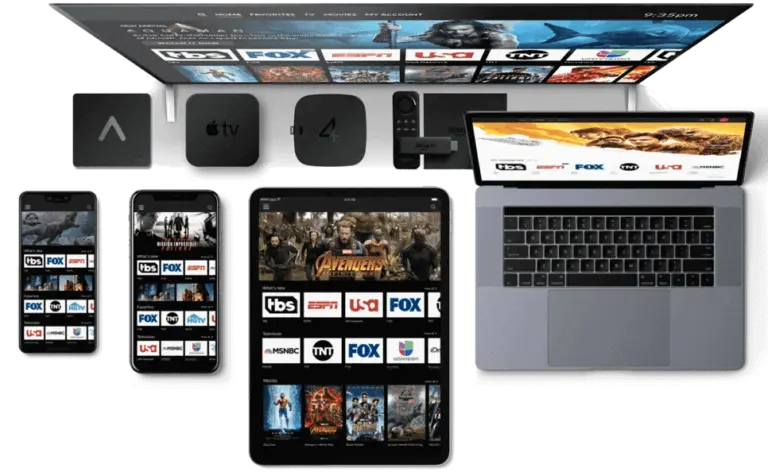
Method 1: IPTV Smarters Pro (Recommended)
IPTV Smarters Pro is the most popular IPTV player for Android TV. It's free, reliable, and works perfectly with Nova IPTV subscriptions.
Step 1: Open Google Play Store
On your Sony Android TV home screen, navigate to the Aplicaciones section and open the Google Play Store. You can also say "Open Play Store" into your voice remote.
Step 2: Search for IPTV Smarters Pro
Use the search bar at the top of the Play Store and type "IPTV Smarters Pro". Select the app by Whizbit Technologies (the official developer). It has a blue and white logo.
Step 3: Install and Open the App
Hacer clic Instalar and wait for the download to complete. Then click Abierto to launch the app. The first time you open it, accept the terms and conditions.
Step 4: Add Your Nova IPTV Playlist
Elegir "Login with Xtream Codes API" (recommended). Enter your Nova IPTV credentials: username, password, and server URL from your subscription email.

Method 2: TiviMate IPTV Player
TiviMate is widely considered the best IPTV player for Android TV in terms of user experience and performance. It's particularly popular for its TV-optimized interface with a traditional channel grid layout.
Step 1: Install TiviMate from Play Store
Buscar "TiviMate IPTV Player" in the Google Play Store on your Sony TV. The premium version unlocks multiple playlists and recording features, but the free version works fine for basic streaming.
Step 2: Add Playlist
Open TiviMate, go to Settings → Playlists → Add Playlist. Choose "Xtream Codes" and enter your Nova IPTV credentials. Alternatively, paste your M3U URL if you have one.
Step 3: Configure EPG (Channel Guide)
TiviMate will automatically fetch the EPG from your IPTV provider. Go to Settings → EPG and ensure it's set to update automatically for the familiar TV guide experience.
💡 Pro Tip: If you have a newer Sony TV with Google TV interface, install the TiviMate companion app on your phone to manage subscriptions and settings from your mobile, then sync to your TV.
Method 3: Screen Cast from Phone
If you prefer using IPTV on your phone first, you can easily cast to your Sony Android TV using the built-in Chromecast feature.
Step 1: Connect to Same WiFi
Ensure both your phone and Sony TV are connected to the same WiFi network. This is essential for casting to work.
Step 2: Open IPTV App and Cast
Open your IPTV app on your phone, start playing any channel, and tap the Cast icon (rectangle with WiFi waves). Select your Sony TV from the list.
⚠️ Warning: Screen casting depends on WiFi speed and stability. For best results, use 5GHz WiFi or connect your Sony TV via Ethernet. Direct app installation (Method 1 or 2) is always more reliable.
Sony Android TV IPTV — Method Comparison
| Method | Ease of Use | Quality | Best For |
|---|---|---|---|
| IPTV Smarters Pro | ⭐⭐⭐⭐⭐ | Hasta 4K | Beginners, all users |
| TiviMate | ⭐⭐⭐⭐ | Hasta 4K | Power users, channel surfing |
| Screen Cast | ⭐⭐⭐ | Up to 1080p | Quick viewing, backup |
Preguntas frecuentes
Can I use IPTV on any Sony Android TV model?
Yes! Any Sony Bravia TV running Android TV 6.0 or later supports IPTV apps from the Google Play Store. This includes models from 2015 onwards. If your Sony TV runs the older "Sony Smart TV" platform (not Android), you'll need an external device like a Fire Stick.
Do I need a VPN for IPTV on Sony TV?
While not always required, using a VPN is recommended for privacy and to avoid potential ISP throttling. You can install VPN apps like NordVPN or ExpressVPN directly from the Play Store on your Sony Android TV, or configure the VPN on your router.
Why is my IPTV buffering on Sony TV?
Buffering is usually a network issue. Try: (1) Connect via Ethernet instead of WiFi, (2) Close background apps, (3) Restart your router, (4) Use a VPN to bypass ISP throttling, (5) Ensure at least 25 Mbps for 4K streaming.
Can I use multiple IPTV apps on my Sony TV?
Absolutely! You can install and run multiple IPTV apps simultaneously. Many users keep both IPTV Smarters Pro and TiviMate installed — Smarters for VOD (movies and series) and TiviMate for live TV with the channel guide.
Is IPTV Smarters Pro free on Sony Android TV?
Yes, IPTV Smarters Pro is completely free to download and use on Android TV. No in-app purchases or subscriptions required for the app itself. You only need your IPTV service subscription to access content.
Looking for more device setup guides? Check out our complete IPTV guides for Samsung, LG, Fire Stick, and more. Ready to start streaming? View pricing plans to find the perfect subscription.
 English
  Deutsch
  Italiano
  Türkçe
  العربية
  Português do Brasil
  Español
  Français
  Svenska
  עִבְרִית
  Čeština
  Ελληνικά
  Polski
  Русский
  Eesti
Eesti  Suomi
Suomi  Norsk bokmål